
AI Translator: Voice & Screen
HKL Game StudioProductivity
4.222.00 Reviews
- Version
- 110_20260907
- Installs
- 1.00M
- Age Rating
- Everyone
Screenshots
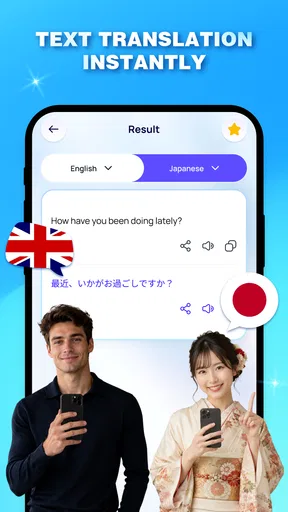
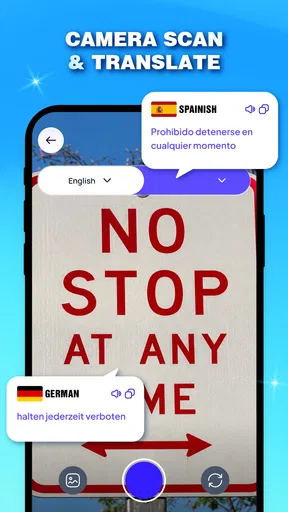
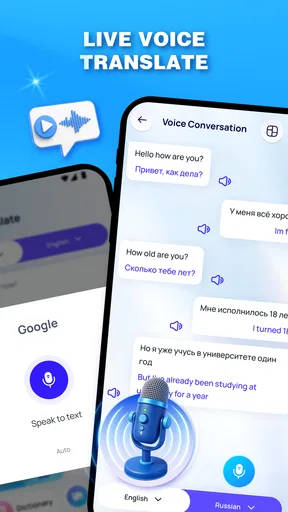
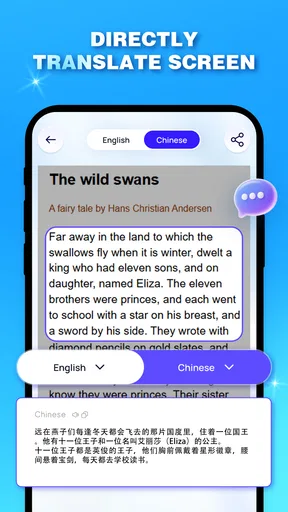
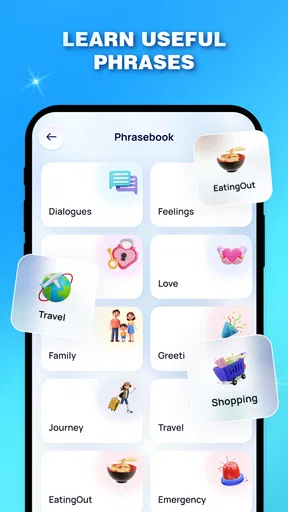
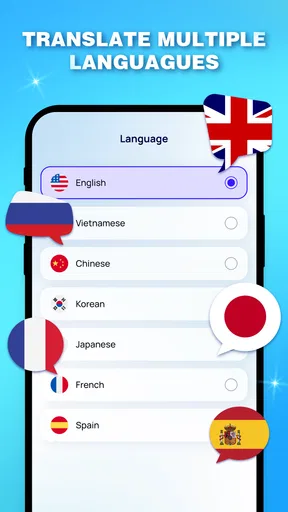
Our Review of AI Translator: Voice & Screen
 Analysis by Appyee
I look at translation apps differently from ordinary productivity tools because they may handle conversations, messages, menus, and whatever happens to be visible on a phone screen. That makes convenience important, but trust just as important. AI Translator: Voice & Screen presents itself as a practical translation utility from HKL Game Studio, aimed at people who need quick help with voice, text, and screen translation rather than a full language-learning course. After spending time with it, I see the appeal: it is built around reducing the number of steps between seeing an unfamiliar language and understanding it.
The app is free to install and is suitable for Everyone, which makes it easy to try on a wide range of Android devices. Its current version is 102_20260402, and it requires Android 8.0 or later. The listing shows a 4.3 average from around 1K ratings, while its install count has passed 500K. Those figures suggest that it has found an audience, but they do not replace my own test of whether the workflow feels sensible when translation is needed quickly.
How the translator fits into everyday use
The strongest idea here is not simply translating a sentence. It is giving me several ways to start: I can work with typed text, spoken language, or content already displayed on the screen. That matters because the right input method changes from moment to moment. Typing is best for a short message I want to check carefully. Voice is more natural during a conversation. Screen translation is useful when the words are embedded in an app, image, menu, or page that would be annoying to copy manually.
In a typical travel situation, I might receive a message from a hotel, open a restaurant menu, and then need to ask a question aloud. Switching between text, screen, and voice translation is more useful than relying on one mode alone. I would not treat the app as a replacement for a professional interpreter, but it can reduce the small language obstacles that otherwise interrupt an ordinary day.
One practical habit makes the experience more reliable: I would use the text mode to verify an important phrase before saying it aloud. Voice translation is convenient, but spoken language often includes background noise, accents, incomplete sentences, and names that automated systems can misunderstand. Typing the same idea gives me a chance to simplify it and spot an awkward result before it causes confusion.
The screen option is the most interesting part for me because it addresses a problem that standard translation apps often handle less smoothly. When text cannot be selected, copying becomes a nuisance. A screen-based workflow can be helpful for a travel booking page, a product instruction, or a message inside another application. I would still review the result rather than assuming every word has been interpreted correctly, especially when the original layout carries meaning.
That layout issue is an important trade-off. Translation is not only about replacing words. Buttons, labels, warnings, names, and short fragments can be ambiguous without context. A screen translation may help me understand the general direction of a page while still requiring a second look at the original. For menus, safety notices, medical information, contracts, or payment details, I would use the app as an aid, not as the final authority.
Trust starts with what the app openly lets me control
For a tool that may be used around conversations and phone screens, I pay close attention to visible choices. I want to know when a translation begins, what input I have selected, and whether I can stop or change the process without fighting through a confusing interface. My preferred workflow is deliberate: select the smallest useful piece of content, translate it, check the output, and then close the task instead of leaving sensitive material on screen.
That approach is especially important with screen translation. A screen can contain more information than the specific sentence I want to understand. Before using such a feature, I would move away from private chats, account pages, payment screens, or documents that include personal details. Cropping or selecting only the relevant area, when the interface allows it, is a better habit than translating an entire screen by default.
I also recommend treating voice input as a conscious action rather than background assistance. Before speaking, I would check that the intended language and mode are selected. Afterward, I would stop the translation session and review the result. These small steps give me more control over what is being processed and reduce the chance of accidentally capturing a nearby conversation.
The app’s free entry point is useful for testing these controls without committing money immediately. At the same time, the presence of in-app purchases ranging from $1.99 to $59.99 per item means I would examine any upgrade screen carefully before confirming a purchase. I would want to understand what a paid option changes, whether it is necessary for my workflow, and whether the free experience already covers occasional translation. A free download is not automatically a free long-term experience, so checking the purchase prompt is part of using it responsibly.
Where data sensitivity matters most
Translation becomes more sensitive when the source is personal rather than public. A tourist menu and a private message may look similar on screen, but they deserve different handling. I would avoid entering passwords, identity numbers, financial information, confidential work text, or private medical details into any general translation tool unless I had a clear reason and understood the relevant controls.
Voice mode deserves the same caution. If I am translating a sentence at a café, I can keep it short and avoid saying unrelated details. If another person is involved, I would make sure they are comfortable with the conversation being processed by a translation service. The app can make communication easier, but convenience should not remove basic courtesy or judgment.
There is also a subtle risk with automatic interpretation of fragments. A short phrase from a notification may be translated without the surrounding context that would explain who sent it or what action it refers to. I would use the result to decide what deserves closer attention, then open the original source and read it in full when the stakes are high. This two-step process is slower than accepting the first translation, but it is much safer.
For work, I see a clear dividing line. The app could be useful for understanding a public webpage, a general product label, or a simple incoming request. I would be much more cautious with internal documents, customer records, legal material, or unreleased plans. In those situations, an organization-approved translation service may be a better choice because the handling rules and account controls are usually easier to evaluate in a managed environment.
Parents may also want to guide younger users even though the content rating is Everyone. That rating makes the app broadly accessible, but it does not mean every translated conversation is appropriate to share or every result is accurate enough for a child to act on alone. I would explain that the tool helps with language but does not decide whether a message is trustworthy, safe, or suitable.
Making voice, text, and screen translation work better
My first tip is to simplify before translating. Instead of speaking a long explanation with several questions, I would separate it into short sentences. This gives the translator clearer units to process and makes the output easier to check. The same principle applies to typed text: remove jokes, slang, and unnecessary detail when accuracy matters more than personality.
My second tip is to use back-checking for anything important. I would translate a key sentence, read the result, and then compare it with the original meaning rather than judging it only by whether the words look fluent. If the outcome feels strangely formal, too strong, or oddly vague, I would rewrite the source in simpler language and try again. This is a useful workflow for travel directions, appointment details, and polite requests.
A third useful habit is keeping a small personal glossary outside the translation session. Names, street names, food terms, and technical expressions are often the things that cause repeated confusion. I would note the correct spelling or meaning somewhere appropriate, then reuse that knowledge instead of repeatedly sending the same sensitive phrase through the app. This reduces friction and helps me become less dependent on automatic translation.
For screen content, I would translate in stages. First I would identify the heading or main instruction. Then I would check the surrounding buttons and warnings. Finally, I would return to the original screen before tapping anything consequential. This is particularly helpful for unfamiliar settings pages, shopping checkouts, and device instructions, where a single mistranslated button can lead to an unwanted action.
Another overlooked issue is timing. Voice translation is most useful when both speakers pause clearly and take turns. If people talk over one another, the app has a harder job separating the intended sentence from background sound. I would position the phone close enough to hear the speaker without placing it in the middle of a noisy table, and I would confirm important names or numbers manually.
Who will appreciate it, and who should choose another tool
I think the app is a good match for travelers, international shoppers, students handling occasional foreign-language material, and anyone who regularly encounters short pieces of unfamiliar text. The combination of input methods is more valuable for these users than a text-only translator because it meets them where the language appears. Someone who only needs to translate a sentence once in a while may also appreciate being able to start without paying.
It can also help people who communicate with relatives or colleagues in another language but do not want to copy every message into a separate service. The screen-oriented workflow may save time, while voice mode can make a basic exchange feel less formal. I would still encourage both people to keep sentences short and confirm details such as dates, addresses, quantities, and names.
I would not choose it as my only tool for professional translation, certified documents, nuanced literary work, or conversations where a mistake could cause serious harm. Human translators and specialized services remain better when tone, cultural context, confidentiality, or legal precision is central. A conventional dictionary may also be preferable when I want definitions, pronunciation guidance, and a deeper understanding of one word rather than a quick sentence-level result.
There are situations where a major general-purpose translation platform may be the better alternative too. If I need extensive language-learning material, a mature phrasebook, offline support, or a long history of saved translations, I would compare those options directly before settling on this app. AI Translator: Voice & Screen is most convincing as an on-demand utility, not as a complete language study system.
Another limitation is that speed can encourage overconfidence. Because the app is designed to make translation feel immediate, I may be tempted to accept the first result and move on. That is exactly when errors can slip through. I would reserve a few extra seconds for anything involving money, travel timing, health, consent, or instructions. The tool saves effort, but it does not remove the need to think.
My cautious verdict after using it
AI Translator: Voice & Screen is a practical productivity app for reducing everyday language friction. I like the way its three input paths match real situations: type when I need control, speak when conversation matters, and use the screen route when copying text is inconvenient. That flexibility gives it a clearer purpose than a basic text box, especially for travel and quick interpretation.
My recommendation comes with a boundary. I would use it for orientation and ordinary communication, while keeping private information out of the workflow and checking important results against the original. I would also review every purchase prompt carefully, since the app is free to start but offers paid items from $1.99 to $59.99. Those are simple precautions, yet they make a meaningful difference in how confidently I can use a translation tool.
HKL Game Studio has made an accessible option for Android users running version 8.0 or newer, and its broad audience indicates that the concept is easy to understand. For me, the deciding question is not whether it can translate something quickly; it is whether the situation is suitable for quick automated translation at all. When the answer is yes, this app can be genuinely handy. When accuracy, privacy, or accountability matters more than speed, I would choose a more specialized or human-supported alternative.
Verdict
Strengths of AI Translator: Voice & Screen
- Translates spoken conversations quickly in multiple languages.
- Screen translation helps understand text inside other apps.
- Voice input makes hands-free translations convenient.
- Useful for travel, study, and everyday communication.
- Simple interface makes core translation tools easy to access.
Limitations of AI Translator: Voice & Screen
- Translation accuracy may vary with accents, slang, and background noise.
- Several advanced features may require a paid subscription.
- Some functions may need a stable internet connection.
- Voice and screen tools can consume noticeable battery power.
- Privacy may concern users when translating sensitive conversations or text.
Similar Picks in This Category
View All
Google Calendar
Google LLC4.6

Google Drive
Google LLC4.3

Google Assistant
Google LLC3.9

Microsoft OneDrive
Microsoft Corporation4.6

Samsung Calendar
Samsung Electronics Co., Ltd.4.1

Microsoft OneNote: Save Notes
Microsoft Corporation4.6
Frequently Asked Questions
What is AI Translator: Voice & Screen, and what can it translate?
AI Translator: Voice & Screen is designed to help users understand spoken conversations, written text, and content displayed on their phone. It can be useful when traveling, studying, chatting with people who speak another language, or reading foreign-language apps and websites. Depending on the selected languages and available features, translations may be provided through voice input, typed text, camera or screen-based translation, and audio playback.
How does the voice translation feature work?
The voice translator generally works by listening through your device microphone, converting speech into text, and then translating the recognized words into your chosen language. You normally select the source and target languages before starting a conversation. Results can depend on pronunciation, background noise, internet quality, and the speaker’s speed, so it is best to speak clearly and use short sentences when accuracy is important.
Can AI Translator: Voice & Screen translate text shown on my screen?
The screen translation function is intended to help users understand text inside other applications, messages, webpages, or images without manually retyping everything. Depending on your device, the app may require permission to display over other apps, capture screen content, or use accessibility-related features. Review these permissions carefully, especially before translating private chats, banking information, passwords, or other sensitive material.
Does the app require an internet connection, and is it free to use?
Many AI-powered translation tools rely on an internet connection to process speech, images, and complex language requests, so some functions may not work properly offline. The app may be available as a free download while offering optional premium features, subscriptions, usage limits, or advertisements. Before using it regularly, check the current pricing, trial conditions, renewal terms, and whether specific translation modes require payment.
How accurate is the translation, and can it replace a professional translator?
AI Translator: Voice & Screen can be convenient for everyday conversations, travel, quick messages, and general reading, but its results should not be treated as perfect. Accuracy may vary with dialects, slang, technical vocabulary, poor audio, incomplete sentences, or text displayed in unusual fonts. For legal, medical, financial, academic, or business-critical documents, verify the result or consult a qualified human translator.
